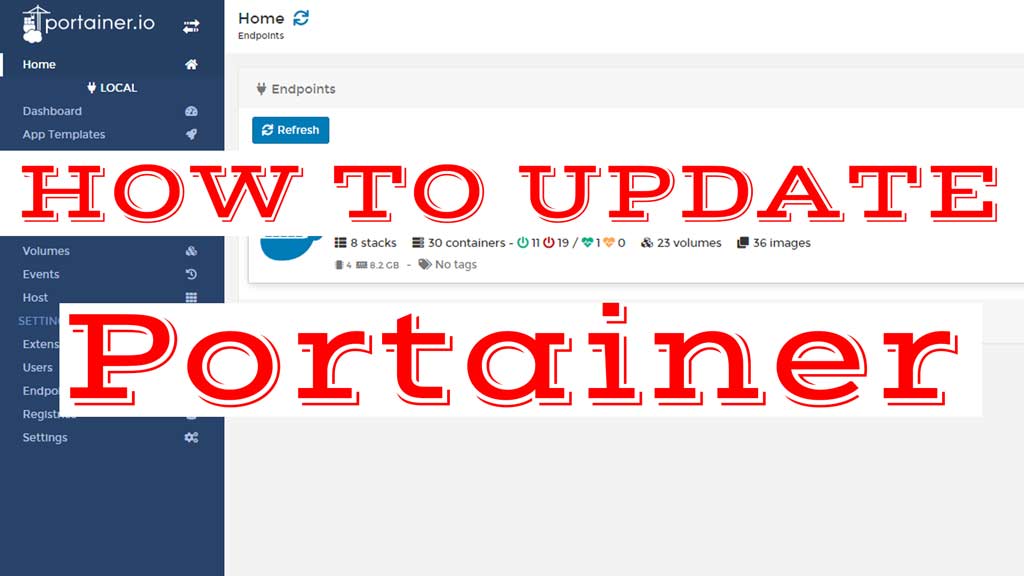
Updating your Portainer server it’s pretty easy if you follow this tutorial.
I suppose you didn’t use docker-compose if you don’t know what it is don’t worry, I’ve written both solution in this tutorial.
Before you start go on Portainer web interface Containers>Portainers and check the Volume section.
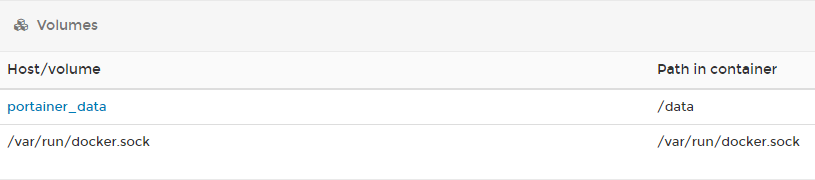
Be sure that you have the portainer_data to /data, otherwise, you are going to lose all your container configurations.
How to stop and delete the Portainer container
Open your terminal and write
sudo docker ps
Now you’ll see all the containers that are running.
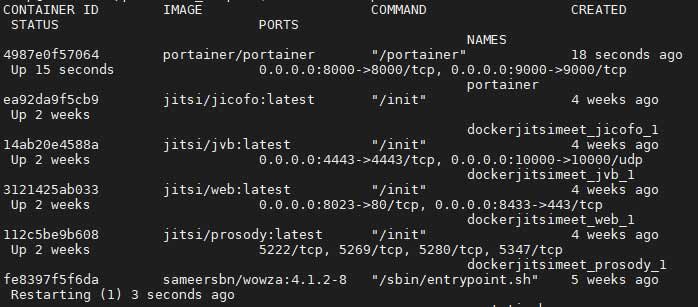
We need to stop the portainer/portainer container. Your CONTAINER ID is gonna be different from mine, so change it.
You don’t have to write all the id, the first three numbers are enough.
sudo docker stop 498
It should print the same number.
Now we need to remove the container using the rm command.
sudo docker rm 498
Also here it should print the same number.
How to remove and update the Portainer image
Now we need to remove the old image of Portainer. I have seen some tutorials where they don’t do it but they were not working for me.
sudo docker image ls
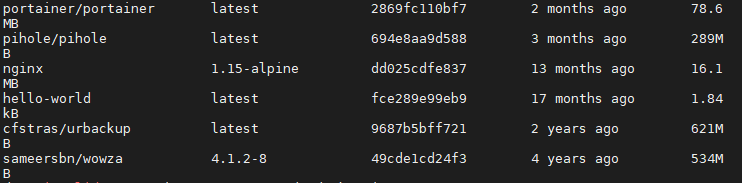
Now you need to do the same thing but with the IMAGE ID.
sudo docker image rm 2869 --force

Now we can finally run again the Portainer container. Since we deleted the old image it’s going to download the latest one from docker.
We just need to run the same command that we run during the first installation
docker run -d -p 9000:9000 -p 8000:8000 --name portainer --restart always -v /var/run/docker.sock:/var/run/docker.sock -v portainer_data:/data portainer/portainer-ce:latest
Now your Portainer web interface should be again accessible and updated.
If you successfully updated your Portainer container please leave a message here or vote the tutorial, so I can now if it’s still working or not.
Update Portainer using docker compose
If you are using a docker-compose.yml file like this one you it should be easier to manage everything.
version: '2'services: portainer: image: portainer/portainer-ce:latest command: -H unix:///var/run/docker.sock restart: always ports: - 9000:9000 - 8000:8000 volumes: - /var/run/docker.sock:/var/run/docker.sock - portainer_data:/data
volumes: portainer_data:
If these commands don’t help you can follow the previous instructions about how to delete the old image and download the new one.
sudo docker-compose down
sudo docker-compose up -d
If you can’t update Portainer leave a message and I’ll try to help you.